

AEM
AEM (Adobe Experience Manager) is a Content Management System (CMS) that allows users and organizations to easily build websites, apps, and manage web pages and content. AEM is used by developers and marketers to organize and distribute content across digital channels. This app supports both the on-premise version of AEM and the AEM as a Cloud Service version.
This app supports connecting to both AEM Cloud and on-premise versions of AEM.
Connecting to AEM Cloud
Section titled “Connecting to AEM Cloud”Prerequisites for connecting
Section titled “Prerequisites for connecting”Before connecting to AEM Cloud, ensure you have the following:
- An AEM Cloud instance running and accessible from the Blackbird platform.
- The Blackbird AEM plugin installed on your AEM instance. Distribution and installation instructions are available here (see prerequisites 1–8). An AEM maintainer or developer should perform this installation. If you use the on-premise version, follow these instructions.
- A technical account and a private key created for it, allowing you to obtain a certificate to connect to AEM (after installing the plugin). See the
Steps to Create Technical Accountsection below for instructions. - The base URL for your AEM environment (e.g.,
https://author-xxxx-xxxxx.adobeaemcloud.com).
Steps to create a technical account in AEM Cloud and obtain a certificate
Section titled “Steps to create a technical account in AEM Cloud and obtain a certificate”- Open Cloud Manager.
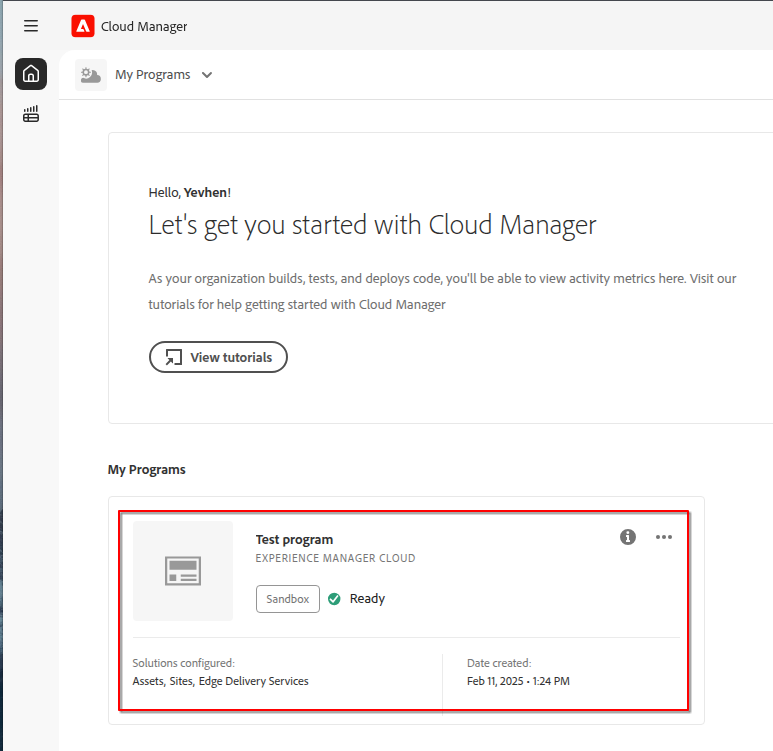
- Select the required program.
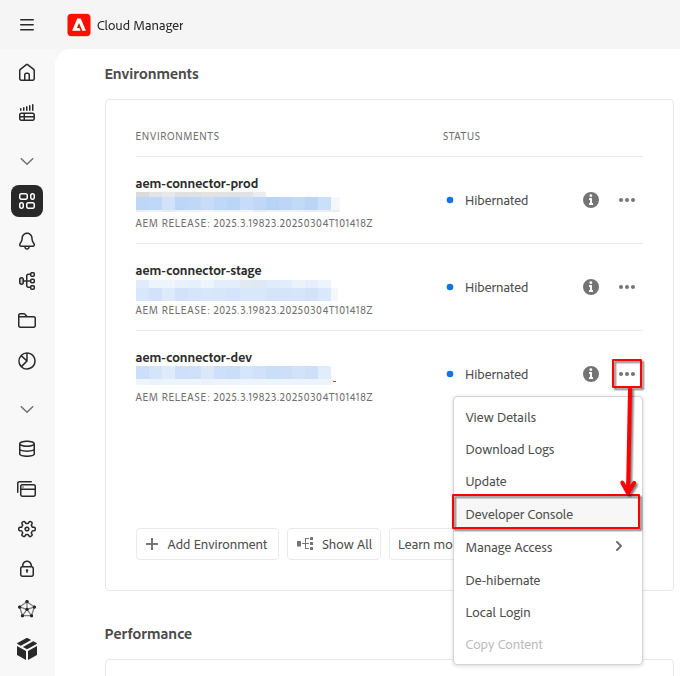
- Open the Developer Console for the required Author environment.
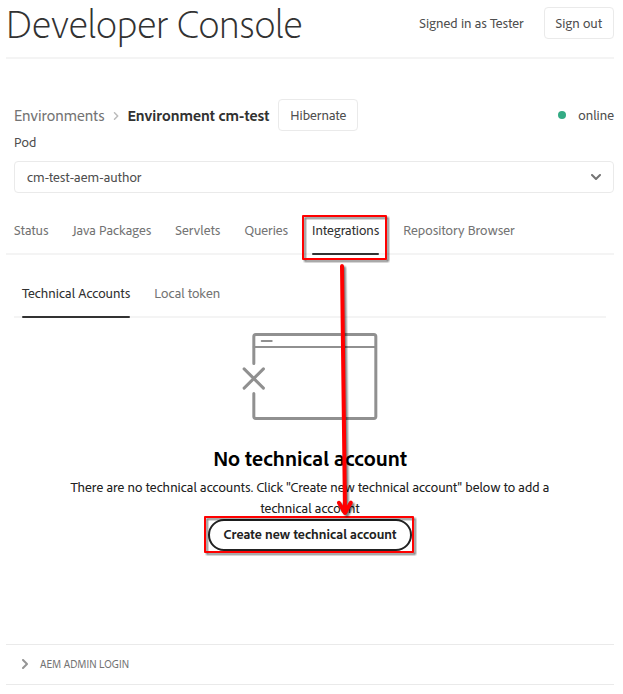
- Switch to the
Integrationstab and create a new technical account.
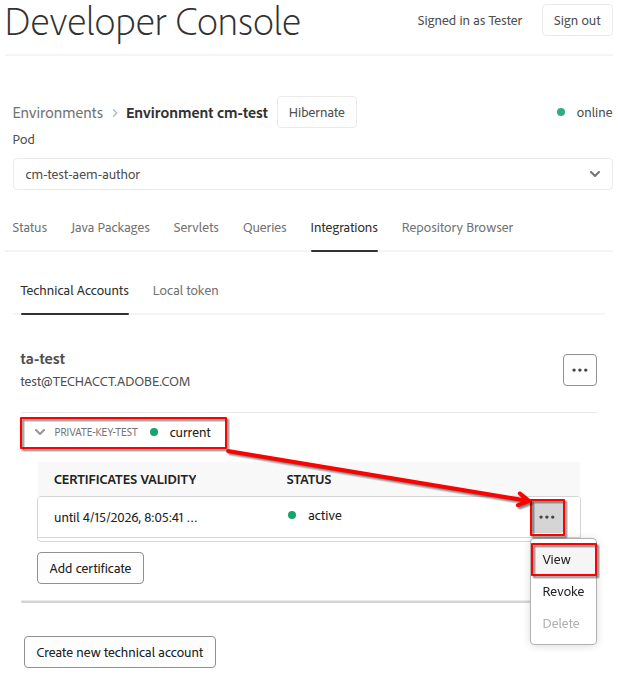
- Expand the created private key and click
Viewto see the data.
- Use the
Downloadbutton to obtain the raw data and store it in a file or another location for integration.

Adding an AEM Cloud connection in Blackbird
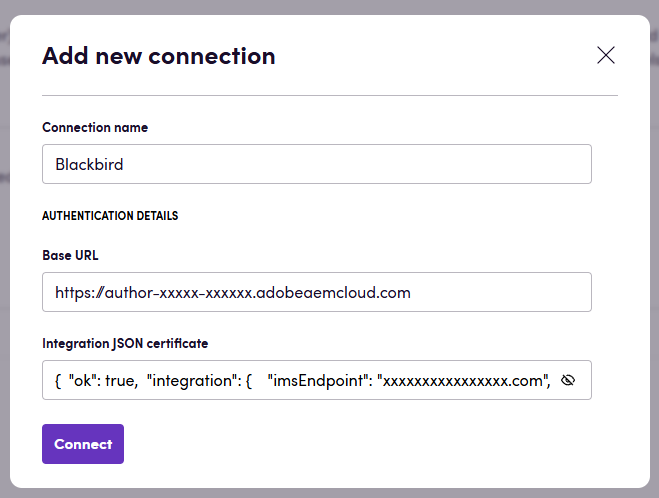
Section titled “Adding an AEM Cloud connection in Blackbird”- Navigate to Apps and search for AEM.
- Click Add Connection.
- Name your connection for future reference (e.g., ‘My AEM’).
- Fill in the following fields:
- Base URL: Your AEM base URL (e.g.,
https://author-xxxx-xxxxx.adobeaemcloud.com) - Integration JSON certificate: The integration certificate in JSON format, found in the Developer Console. Example:
{ "ok": true, "integration": { "imsEndpoint": "ims-na1.adobelogin.com", ... }, "statusCode": 200 }
- Base URL: Your AEM base URL (e.g.,
- Click Connect.
- Confirm that the connection appears and the status is Connected.
Connecting to AEM On-Premise
Section titled “Connecting to AEM On-Premise”Prerequisites for connecting to AEM On-Premise
Section titled “Prerequisites for connecting to AEM On-Premise”Before connecting to AEM on-premise, ensure you have the following:
- An AEM instance running and accessible from the Blackbird platform.
- The Blackbird AEM plugin installed on your AEM instance. Distribution and installation instructions are available here (prerequisites 1–8). An AEM maintainer or developer should perform this installation.
- The base URL for your AEM environment (e.g.,
https://aem.example.com). - A username and password for the AEM instance. The user must have sufficient permissions to perform the required actions.
Adding an AEM On-Premise connection in Blackbird
Section titled “Adding an AEM On-Premise connection in Blackbird”- Navigate to Apps and search for AEM.
- Click Add Connection.
- Name your connection for future reference (e.g., ‘My AEM’).
- Fill in the following fields:
- Base URL: Your AEM base URL (e.g.,
https://aem.example.com) - Username: Your AEM username
- Password: Your AEM password
- Base URL: Your AEM base URL (e.g.,
- Click Connect.
- Confirm that the connection appears and the status is Connected.
Identifying content to translate
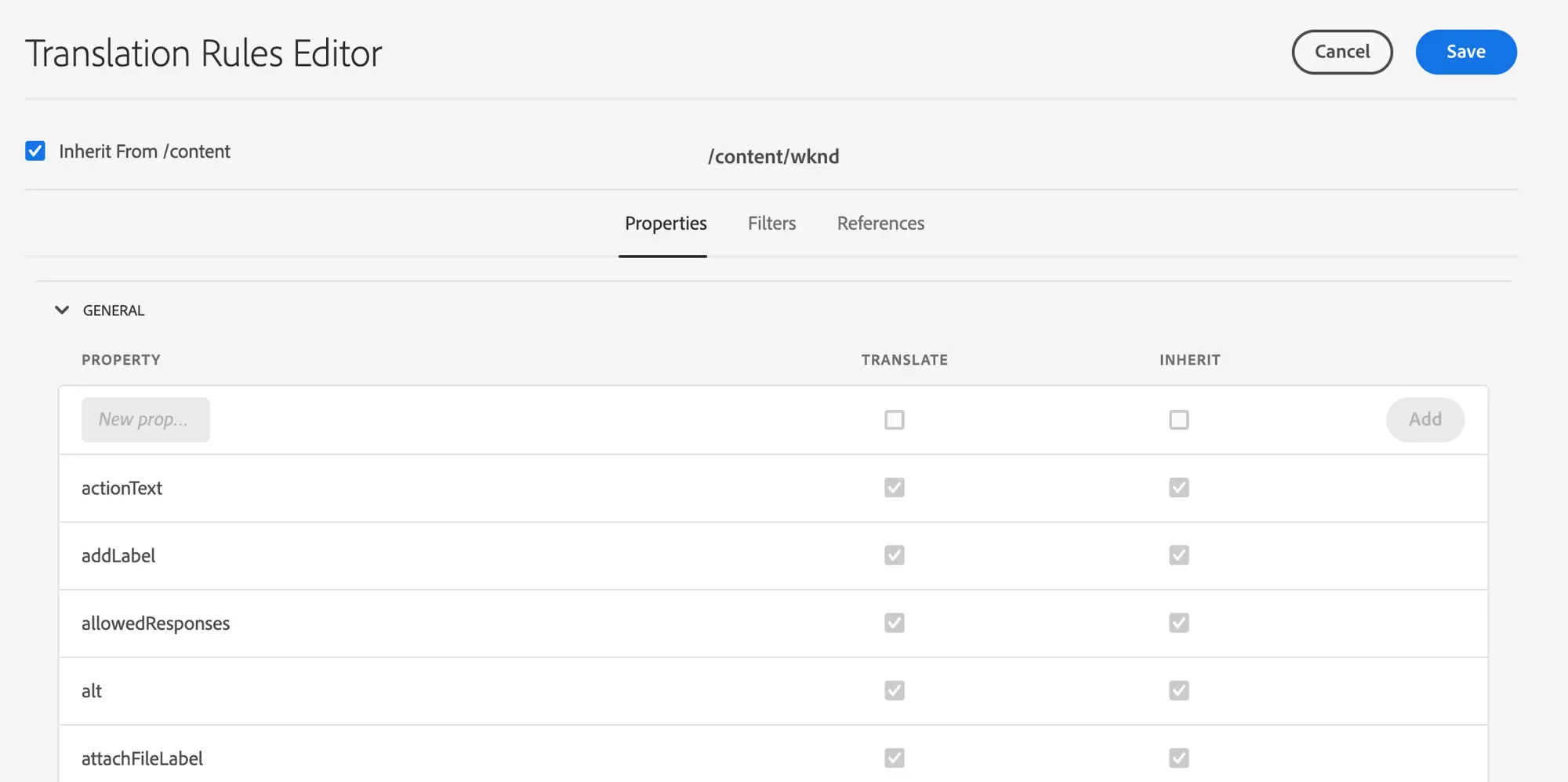
Section titled “Identifying content to translate”Blackbird relies on built-in AEM rules to determine which content to translate.
You can find and configure these rules in AEM under Tools > Operations > Translation Rules.
For more information on configuring translation rules, see the official documentation.
Adding support for custom components
Section titled “Adding support for custom components”While the general translation rules cover many standard component properties, they don’t automatically know about the specific fields in your custom-built AEM components. To ensure your custom content is translated, you must add specific rules for your component’s resource type.
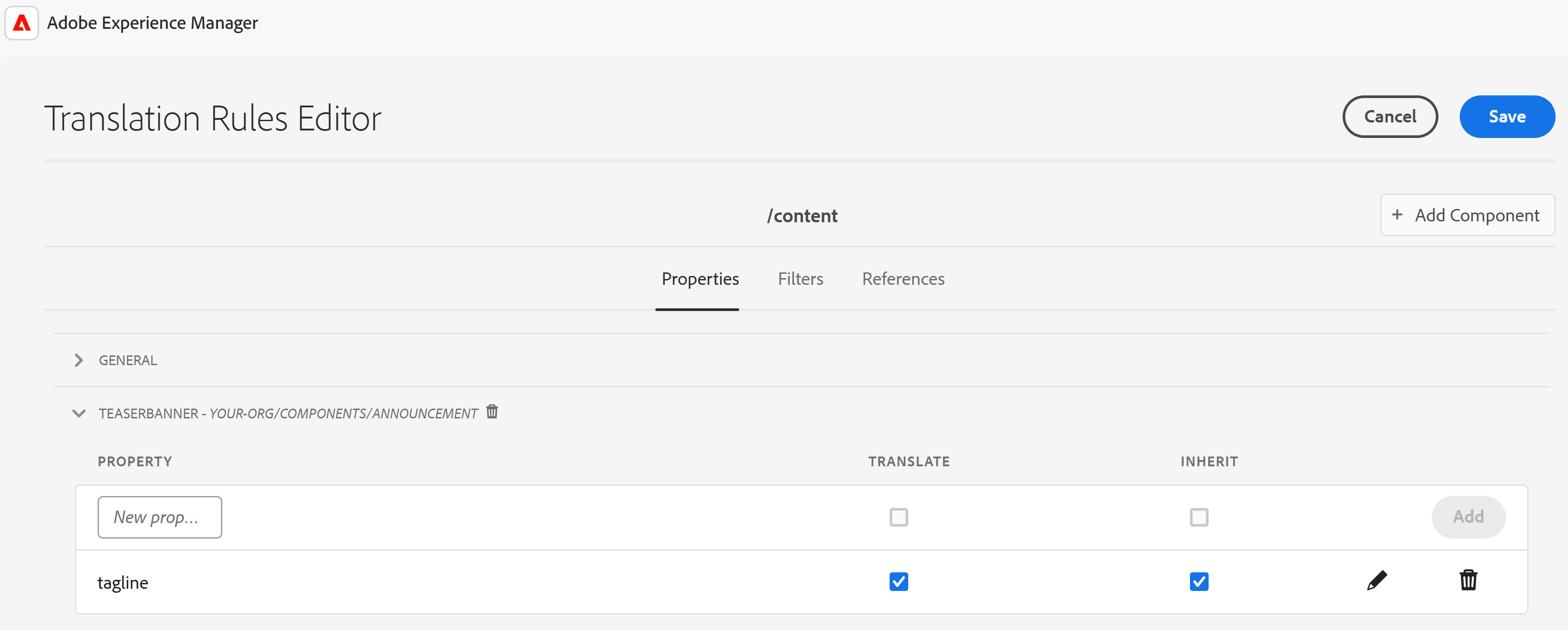
Let’s use an example. Suppose you have a custom “Announcement” component, and you need to translate its tagline field.
Find the sling:resourceType of your component and the exact name of the property you want to translate. You can do this using CRXDE Lite by navigating to an instance of the component on a page.
In this example, the component node will have the following key information:
- Path:
/content/your-org/.../page-you-want-to-translate - Resource Type:
your-org/components/announcement - Property to translate:
tagline
Navigate to your project’s translation rules in the /content section, click “Add component” and add new component using sling:resourceType and propery name. Make sure to click Save button once you’ve finished configuration.
Actions
Section titled “Actions”- Search content: Search pages and experience fragments (default), assets and content fragments, DITA files, or raw files using native AEM QueryBuilder.
- Root path: Searches below this path; surrounding whitespace is trimmed. An omitted path leaves the search unrestricted.
- Include root content: Defaults to true. The root item is eligible when it matches all filters. Set false to search descendants only. Filters and the result limit still apply, so root inclusion does not guarantee the root will appear.
- Tags / Keyword: Matches at least one supplied tag and applies AEM full-text search. These filters combine with the path, content type, and dates using AND.
- Name pattern: Matches the page name or filename, rather than its title or full path. Supports
*(zero or more characters),?(one character), and[abc](one listed character). Examples:about-*,*.dita. - Property name / Property value: Supply both to match an exact stored property value. Use a relative property path, such as
jcr:content/jcr:titlewith valueAbout Usfor a page. Values are preserved without trimming; wildcards are literal. For a multi-value property, any matching value qualifies. - Exclude path: A regular expression matched against the full content path. For example,
.*/archive(/.*)?excludes archive nodes and their descendants. A literal path excludes only that exact path; regex metacharacters must be escaped when intended literally. AEM applies this filter server-side before returning results. The exclusion predicate cannot use a search index, so use a narrow root path and other indexed filters to reduce candidate nodes. Max items to return limits returned results, not the number of nodes AEM may examine. See the Adobe predicate reference. - Name, property, and exclusion filters combine with all other criteria using AND. They do not change the result limit or output fields.
- Created or modified after / before: Optional, exclusive date bounds. Neither has a default. Supply either or both; the start must precede the end. Dates without a time zone are treated as UTC. Local dates are converted to UTC.
- Events: With date bounds, select created, modified, or both (default). Both matches either timestamp within the supplied bounds. Without date bounds this input has no filtering effect.
- Max items to return: Defaults to 100 and must be positive. The action makes one bounded request; it does not fetch further pages. Ordering is unspecified.
- Output: Content items retain content path, title, created at, and modified at. Total count is the number of returned items, not the estimated number of all matches. Missing dates use the existing output model’s default date value. Native QueryBuilder timestamps can have only second precision, while the deprecated action can preserve milliseconds.
- Permissions: Uses the connection account’s read permissions. Results can differ from plugin searches, which use the plugin service account. No plugin update or deployment is required.
- Search content (deprecated): Existing plugin-based search retained for workflow compatibility, with its original inputs, outputs, pagination, and date defaults (five years ago through the current time). Existing workflows continue to call this action. New search blueprints use Search content.
- Download content: Download content as HTML. Requires a content ID. This action supports the following optional input:
- Include reference content: If set to true, referenced content (other pages, content fragments, experience fragments, etc.) will be included in the downloaded HTML.
- Upload content: Upload content from HTML. Requires an HTML file and target path as input. This action supports the following inputs:
- Content (required): The interoperable HTML, XLIFF, or original JSON file to upload.
- Source language (required): The language path segment in the source content URL. Example: If your content path is
/content/my-site/en-us/page, specify/en-usas the source language. - Target language (required): The language path segment to replace the source language. Example: To convert from
/content/my-site/en-us/pageto/content/my-site/fr-fr/page, specify/fr-fras the target language. - Overwrite main content path (optional): Completely replaces the source content path to which language inputs will be applied. Useful for testing and requires “Skip references” to be set to true.
- Skip references (optional): If set to true, only the main (root) content item will be updated; reference content will not be updated.
- Ignore reference content errors (optional): When set to true, errors that occur while updating reference content will be ignored. Errors will be visible in the action output.
- Get asset tags: Get the tags for a specific asset.
- Update asset tags: Update the tags for a specific asset.
- Remove asset tags: Remove specific tags from an asset.
- Change tags: Add or remove tags from any content (pages, experience fragments, assets, etc).
- Get content text property: Get a single string property value from a site page.
- Get content array property: Get a multi-value property from a site.
- Update content property: Updates the value of a text property.
- Get IDs from content: Get the IDs of all sites, content fragments or experience fragments from a Blackbird-generated file.
Events
Section titled “Events”- On content created or updated: Polling event that periodically checks for new or updated content. If any content is found, the event is triggered.
- On tag added: Periodically checks for new content with specified tags. If any content is found, the event is triggered.
- On tag added to content fragment: A polling event that checks for watched tags newly added to content fragments under the specified DAM path.
- On property updated: Triggered when a page under the root path has a specific property updated to match a provided value.
Note on compatible content: Blackbird supports all content types in the default page hierarchy: pages, content fragments, experience fragments, assets, etc. Support for ‘Guides’ and ‘DITA’ content is currently in beta.
Example
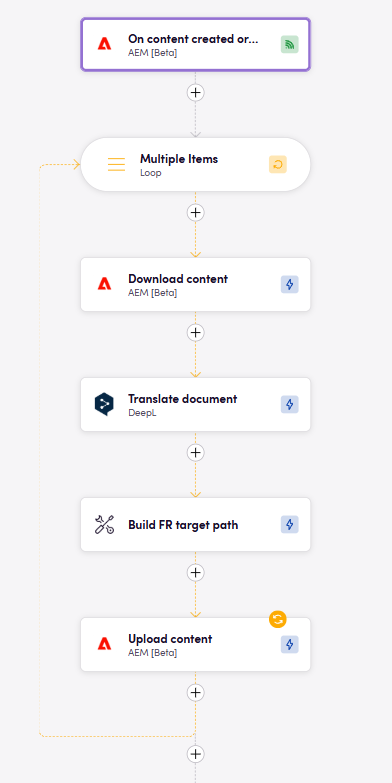
Section titled “Example”Below is an example of how to set up a translation workflow with the AEM and DeepL apps to automatically translate content in AEM and send it to DeepL for translation.
Workflow steps:
- The
On content created or updatedevent is triggered every hour and checks for new or updated content in AEM. If any content is found, the event is triggered. - In the loop, the
Download contentaction downloads the content from AEM in HTML format. - The
Translate documentaction of theDeepLapp sends the downloaded content to DeepL for translation. - The
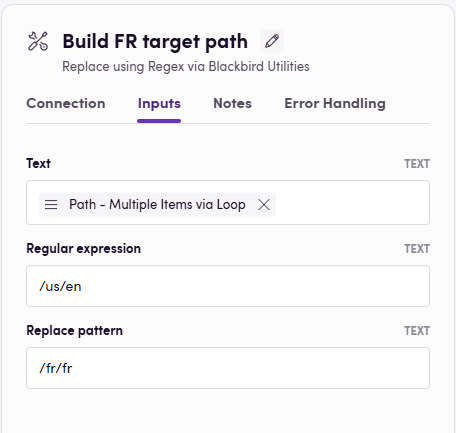
Replace using regexaction of theBlackbird Utilitiesapp replaces the original path with the target path in the translated content.
- The
Upload contentaction uploads the translated content back to AEM.
Search content examples
Section titled “Search content examples”Use the Search content action for these examples. Replace the WKND sample paths and values with content from your instance. Leave inputs not shown empty: the default content type is pages and experience fragments, no date bounds apply, and at most 100 matching items are returned. Results depend on the connection account’s read permissions.
Include content under a path
Section titled “Include content under a path”| Input | Value |
|---|---|
| Root path | /content/wknd/language-masters/en |
| Include root content | false |
| Content type | Pages and experience fragments |
This search returns descendant pages of the English root page.
To include only pages whose names match a pattern, add Name pattern = about-*. This matches the final segment of the content path, such as about-us in /content/wknd/language-masters/en/about-us, rather than the page title or full path. Other patterns include about-?s and about-[u]s. For DITA filenames, use *.dita with the appropriate Content type and DAM root path.
Search by a property
Section titled “Search by a property”| Input | Value |
|---|---|
| Root path | /content/wknd/language-masters/en |
| Property name | jcr:content/jcr:title |
| Property value | About Us |
This finds pages with the stored title About Us. Supply both property inputs. The property path is relative to each matching item, and the value must match exactly. For a multi-value property, one matching value is enough.
These inputs also support filtering content by custom properties.
Exclude a page or branch
Section titled “Exclude a page or branch”| Input | Value |
|---|---|
| Root path | /content/wknd/language-masters/en |
| Exclude path | /content/wknd/language-masters/en/adventures(/.*)? |
This searches the English hierarchy while excluding the adventures page and all its descendants. To exclude only one page, use /content/wknd/language-masters/en/about-us; its descendants remain eligible. To exclude every branch named archive under the search root, use .*/archive(/.*)?.
Exclude path uses a regular expression against the full path, unlike the wildcard syntax of Name pattern. Escape regex metacharacters in literal names: for example, .*/brochure\.pdf excludes a file named brochure.pdf.
AEM applies exclusions server-side before returning results, but exclusion cannot use a search index. Narrow the root path and other filters to reduce the work AEM performs. Max items to return caps returned items, not the number of nodes AEM may examine.
Combine filters
Section titled “Combine filters”| Input | Value |
|---|---|
| Root path | /content/wknd/language-masters/en |
| Include root content | false |
| Name pattern | about-* |
| Property name | jcr:content/jcr:title |
| Property value | About Us |
| Exclude path | .*/archive(/.*)? |
| Created or modified after | 2026-09-01T00:00:00Z |
| Events (all by default) | Modified |
| Max items to return | 10 |
This returns up to 10 descendant pages whose names match about-*, whose stored title is exactly About Us, and whose modification date is strictly after September 1, 2026 at midnight UTC. Pages in an archive branch are excluded. Every condition must hold; no matches produces an empty result.
You can also add Tags, such as default:ready-for-translation and workflow:wcm/ready-for-translation, as separate list entries. A page must match at least one supplied tag and every other filter.
Demo video
Section titled “Demo video”This demo showcases a flexible and highly configurable alternative to a traditional AEM Connector using Blackbird.io.
With Blackbird, you can:
- Automatically pull content from Adobe Experience Manager (AEM)
- Orchestrate translation or transformation workflows
- Push localized or modified content back into AEM
- Add human checkpoints, AI enrichment, and custom routing
Unlike standard AEM connectors, Blackbird.io gives you full control over the process, with no-code configuration and enterprise-grade flexibility.
There are three primary integration patterns we typically support:
1. AEM Sites
- Supports custom components and structured content
- Handles live copies / live pages correctly
- Respects AEM’s built-in translation rules (including exclusion of technical fields from translation)
- Works cleanly within AEM Cloud’s architecture
2. AEM Guides (DITA)
- Direct support for DITA books, maps, and topics
- No need for manual assembly of translation projects
- Custom elements and flexible filtering supported
- Designed to handle structured documentation workflows at scale
3. AEM Assets (e.g., PDFs, eBooks, documents)
- Fully supported, but more dependent on the client’s AEM Cloud configuration
- Requires proper enablement of the HTTP Assets API for file upload and processing
- Setup considerations depend on how assets are stored and accessed
Common “Challenge” in Cloud Environments
Section titled “Common “Challenge” in Cloud Environments”The primary consideration we see with AEM Cloud is not Blackbird connectivity instability, but proper scoping and workflow design. Specifically:
- Determining which content paths (Sites vs Guides vs Assets) need to be automated
- Defining tagging strategies to trigger translation workflows
- Setting up filtering rules in Blackbird to ensure:
- Only relevant content is processed
- Technical/system fields are excluded
- Large-scale AEM repositories don’t create unnecessary processing load
For larger AEM Cloud implementations, thoughtful configuration around paths, tags, and content filtering is key to ensuring optimal performance and clean automation flows.
Once that foundation is in place, we’ve seen stable, predictable behavior in AEM Cloud environments.
Feedback
Section titled “Feedback”Would you like to use this app or have feedback on our implementation? Reach out to us using the established channels or create an issue.