

Smartsheet
Smartsheet is a software as a service (SaaS) offering for collaboration and work management, developed and marketed by Smartsheet Inc.
Before setting up
Section titled “Before setting up”Before you can connect, please make sure you have an active Smartsheet account. You will need to select your corresponding base URL when setting up the connection:
- Standard/US (
app.smartsheet.com): Smartsheet - Gov (
app.smartsheetgov.com): Smartsheet Gov - Europe (
app.smartsheet.eu): Smartsheet Regions Europe - Australia (
app.smartsheet.au): Smartsheet Regions Australia
API Key
Section titled “API Key”Follow the instructions at this link to create a new API key.
After the key is created, copy it and store it in a safe place. You won’t be able to access it again.
OAuth2
Section titled “OAuth2”You need to register your own OAuth application to be able to connect. For this, follow this documentation.
Fill in the App redirect URL value with this link: https://bridge.blackbird.io/api/AuthorizationCode.
The rest of the fields do not matter for Blackbird, so you can specify any values you wish.
After the app is created, copy the client ID and client secret values. You’ll need them later to create a connection.
Connecting
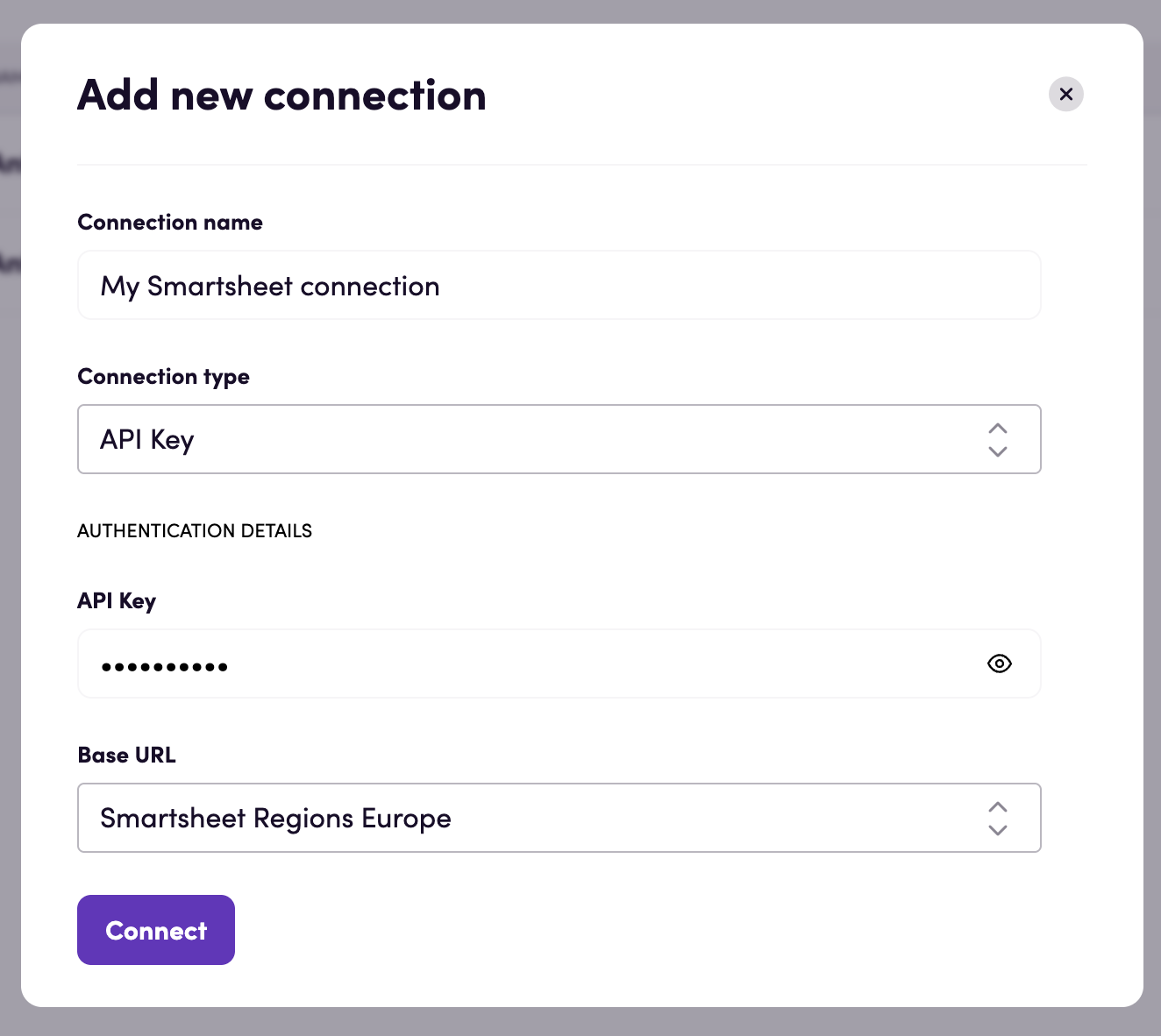
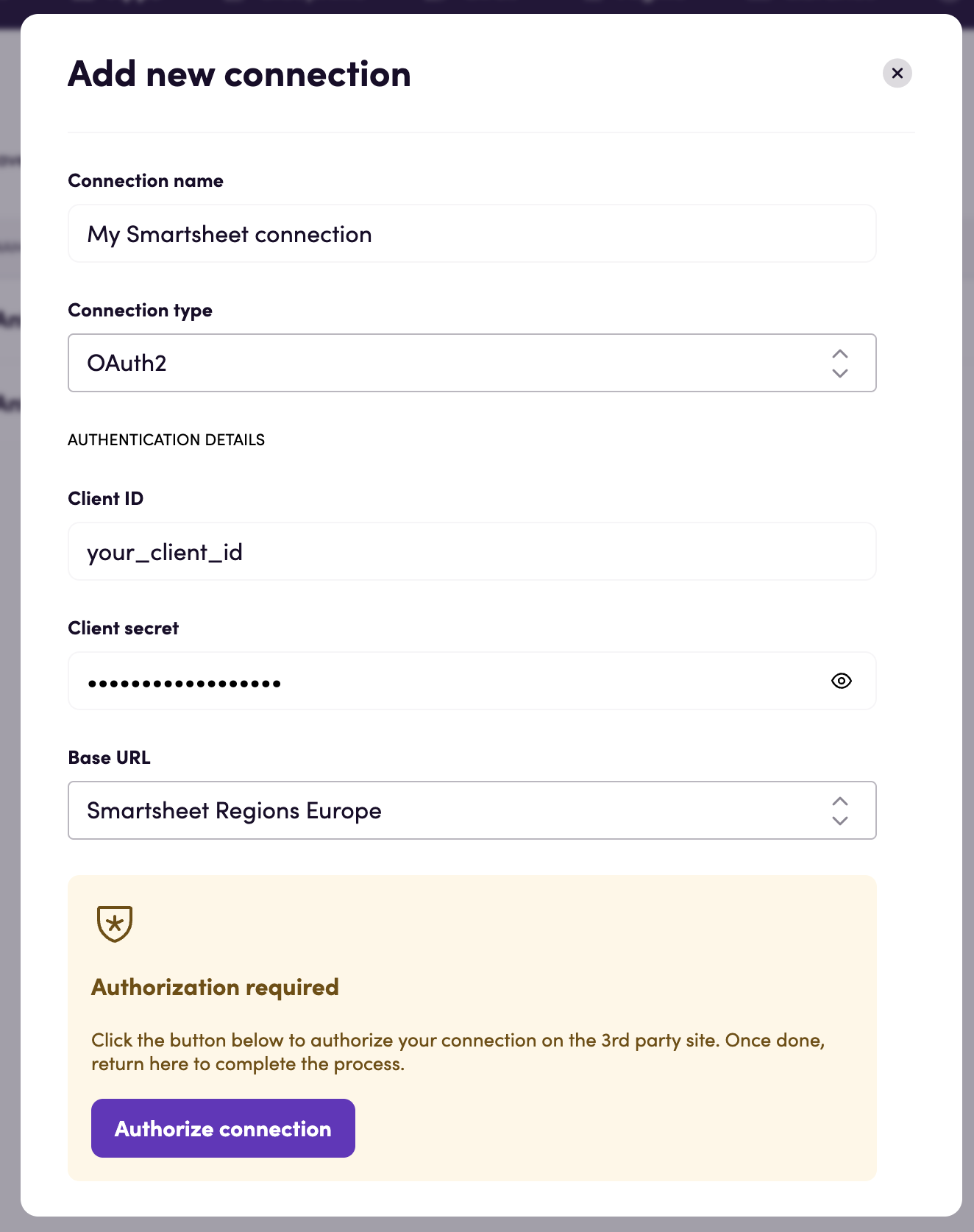
Section titled “Connecting”Navigate to apps and search for Smartsheet. Click Add connection and name your connection for future reference e.g. ‘My Smartsheet connection’. Choose the base URL of your instance.
API Key
Section titled “API Key”- Select the API Key connection type from the dropdown.
- Fill in the API key you copied earlier.
OAuth2
Section titled “OAuth2”- Select the OAuth2 connection type from the dropdown.
- Fill in the client ID and client secret you copied earlier.
- Click Authorize connection and follow Smartsheet’s instructions to connect to your custom OAuth app.
- When the process is complete, return to Blackbird and confirm the connection was created successfully
Additional notes
Section titled “Additional notes”- This app requires a Business, Enterprise or Advanced Work Management Smartsheet plan.
- Please note that newly created or recently updated data may not be immediately discoverable via search. This is a limitation of the Smartsheet API.
- When updating cell values, make sure to wrap multiselect items in brackets and separate them with a comma.
Example:
[test1, test2]. - Smartsheet also has some hard limits. You can read them here.
Actions
Section titled “Actions”Attachments
Section titled “Attachments”- Search attachments. Search attachments on a sheet, discussion or row.
- Upload attachment. Upload an attachment to a sheet, comment or a row.
- Download attachment. Download a specific attachment.
- Get attachment. Get information about a specific attachment.
- Delete attachment. Delete a specific attachment.
- Get cell value. Get value of a specific cell.
- Update cell value. Update value of an existing cell.
Columns
Section titled “Columns”- Search columns. Search columns for a specific sheet.
- Get column. Get definition for a specific column.
- Add column. Insert one column into a specific sheet.
- Update column. Update properties of a specific column.
- Delete column. Delete a specific column.
Comments
Section titled “Comments”- Get comment. Get a specific comment.
- Create comment. Add a comment to a discussion.
- Update comment. Update the text of a specific comment. Only the author can edit it.
- Delete comment. Delete a specific comment.
Contacts
Section titled “Contacts”- Search contacts. Search through the user’s contacts.
- Get contact. Get a specific contact.
Discussions
Section titled “Discussions”- Search discussions. Search through all discussions for a specified sheet, optionally filtered by row.
- Get discussion. Get a specific discussion.
- Create discussion. Create a new discussion on a sheet or a row.
- Delete discussion. Delete a specific discussion.
Folders
Section titled “Folders”- Get folder. Get metadata for a specific folder.
- Get folder path. Get path for a specific folder.
- Create folder. Create a new folder.
- Update folder. Update an existing folder.
- Delete folder. Delete an existing folder.
- Search rows. Search rows for a specific sheet.
- Get row. Get row values.
- Add row. Insert a new row into a specific sheet.
- Update row. Update values of an existing row.
- Delete row. Delete a specific row.
Sheets
Section titled “Sheets”- Search sheets. Search sheets that the user has access to.
- Search within all sheets. Searches all sheets for the specified text.
- Search within sheet. Searches a specific sheet for the specified text.
- Get sheet. Get a specific sheet.
- Create sheet. Create a sheet from scratch.
- Update sheet. Update a specific sheet.
- Download sheet. Download a specific sheet.
- Upload sheet. Upload a new sheet.
- Search users. Search users in the organization account.
- Get user. Get a specific user.
Workspaces
Section titled “Workspaces”- Search workspaces. Search workspaces that the user has access to.
- Get workspace. Get a specific workspace.
Events
Section titled “Events”Attachments
Section titled “Attachments”- On attachments created. Triggers when an attachment is added to the sheet.
- On attachments updated. Triggers when an attachment is updated.
- On attachments deleted. Triggers when an attachment is deleted.
Folders
Section titled “Folders”- On folders created. Triggers when new folders are created.
Sheets
Section titled “Sheets”- On sheets created. Triggers when new sheets are created.
- On sheet updated. Triggers when a specific sheet is updated.
- On cells updated. Triggers when cells are created or updated.
Feedback
Section titled “Feedback”Do you want to use this app or do you have feedback on our implementation? Reach out to us using the established channels or create an issue.