

ServiceNow
ServiceNow is a cloud platform for IT service management and knowledge management. This app lets you work with ServiceNow knowledge articles and incidents directly from your Blackbird workflows — search and read articles, create and update them, open and manage incidents, add comments, and download attachments.
Before setting up
Section titled “Before setting up”Before you can connect, you need:
- A ServiceNow instance (for example
https://your-instance.service-now.com). - The Knowledge API application (
sn_km_api) installed on the instance. See Installing the Knowledge API. - A dedicated integration user (
sys_user_list.do) with the rolessnc_basic_auth_api_access,snc_platform_rest_api_access,knowledge,knowledge_admin,tags_adminanditil. - The username and password of that account.
Note: An admin account will not work: ServiceNow blocks basic authentication for interactive users and
snc_basic_auth_api_accessis the exception to that. Also make sure ‘Password needs reset’ is unchecked after setting the password.
Installing the Knowledge API
Section titled “Installing the Knowledge API”The article actions require the ServiceNow Knowledge API application (sn_km_api). This application might not be installed on your ServiceNow instance by default.
A ServiceNow administrator can install it as follows:
-
Log in to the ServiceNow instance as an administrator.
-
Navigate to All → Admin Center → Application Manager → Available for you.
On some ServiceNow versions, use All → System Applications → All Available Applications → All.
-
Search for Knowledge API. If it does not appear, search for its application ID:
sn_km_api. -
Open the Knowledge API application and click Install.
-
Wait for the installation to complete.
-
To verify the installation:
- Open REST API Explorer.
- Check that
sn_km_apiis available in the Namespace list.
Setting up tag permissions
Section titled “Setting up tag permissions”Tags are not a field on the article - they live in a separate label_entry join table whose key fields are locked down
out of the box. Without this setup, Add tag to article and Remove tag from article actions silently do nothing.
Reading and filtering by tags works without it.
Add tags_admin and global_tags_creator to the integration user’s roles.
Then, as an administrator, elevate to security_admin via the avatar menu, create a role (for example, u_blackbird_integration)
under User Administration → Roles and assign it to the integration user.
Under System Security → Access Control (ACL), create five records,
each with Type record and Requires role u_blackbird_integration:
| Operation | Table | Field |
|---|---|---|
| create | Label Entry [label_entry] | none |
| delete | Label Entry [label_entry] | none |
| create | Label Entry [label_entry] | table |
| create | Label Entry [label_entry] | table_key |
| create | Label Entry [label_entry] | label |
Connecting
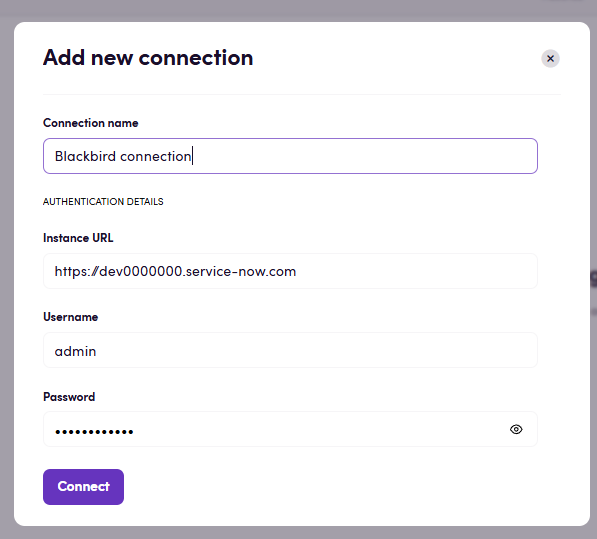
Section titled “Connecting”- Navigate to Apps and search for ServiceNow.
- Click Add connection.
- Name your connection for future reference, for example “My ServiceNow account”.
- Fill in the connection fields:
- Instance URL — the base address of your instance, for example
https://your-instance.service-now.com. - Username — your ServiceNow username.
- Password — your ServiceNow password.
- Instance URL — the base address of your instance, for example
- Click Connect.
- Confirm that the connection has appeared and the status is Connected.
Actions
Section titled “Actions”Articles
Section titled “Articles”- Search articles — Find knowledge articles matching a search text and optional filters (language, knowledge bases, state, and created/updated date ranges). Returns the matching articles with their ID, number, title, body preview, language, state, knowledge base and created/updated timestamps. Articles in every workflow state are searchable, drafts included.
- Get article metadata — Read all metadata fields of a single article (title, state, knowledge base, category, author, language, body and timestamps).
- Update article metadata — Change one or more fields of an article (title, body, knowledge base, category, language).
- Download article — Export an article’s translatable fields (title and body) as a self-describing HTML file ready for translation.
- Upload article — Import a translated file (
.html/.xliff/.xlf) and write its title and body onto the article of the selected language. - Create article — Create a new article with a title, language, knowledge base and optional HTML body.
Note: newly created and updated articles are kept in the draft state. Publishing an article typically goes through your knowledge base’s publish workflow and may require an approval, so the “Is draft = off” (publish) option is best-effort and depends on your instance configuration.
Incidents
Section titled “Incidents”- Create incident — Open a new incident with a short description and optional details, urgency, impact, caller and assignee.
- Get incident — Retrieve a single incident by its ID.
- Update incident — Change fields on an incident (description, state, priority, urgency, impact, assignee).
- Delete incident — Permanently remove an incident.
- Search incidents — Find incidents matching a ServiceNow encoded query (for example
state=2^priority=1). Pagination is handled automatically. - Get incident comments — List the customer-visible comments on an incident, newest first, with author and timestamp.
- Add comment to incident — Append a customer-visible comment to an incident.
Attachments
Section titled “Attachments”- Download attachment — Download the file content of an attachment by its ID.
- Search tags — Search all available tags.
- Get tags — Get details for a specific tag.
- Create tag — Create a new tag.
- Delete tag — Delete an existing tag.
- Add tag to article — Add a tag to an existing article.
- Remove tag from article — Remove a tag from an article.
Events
Section titled “Events”Articles
Section titled “Articles”- On articles created or updated — Triggers for knowledge articles created or updated since the previous poll. Optional filters: article ID (watch a single article), language, and knowledge bases. Each returned article is tagged as created or updated.
- On articles status changed — Triggers when an article’s workflow state (draft, review, published, retired) changes. Optional filters: article ID, language, knowledge bases, and status (only trigger when the article changes into one of the selected states). Reports the previous and new state.
Incidents
Section titled “Incidents”- On new incidents — Triggers for incidents opened since the previous poll.
- On new incident comment — Triggers for customer-visible incident comments added since the previous poll, each with the incident it belongs to. New comments are read in a single query across all incidents, so cost does not grow with the number of incidents.
Feedback
Section titled “Feedback”Do you want to use this app or do you have feedback on our implementation? Reach out to us using the established channels or create an issue.