

Errors, Logs & Notifications
Effective error handling is an important part of operating reliable workflows. Blackbird helps you prevent transient failures with retry policies, keep non-critical work from blocking a Flight with skip actions, investigate what happened in Logs, and stay informed through Notifications.
Errors in Flights
Section titled “Errors in Flights”Actions that Blackbird executes can throw errors. This section covers what types of errors you can expect, and how to possibly mitigate them.
Types of Errors
Section titled “Types of Errors”When an Action throws an error, Blackbird stops the Action and Flight and displays the error on the Flight page. Errors raised by Apps are grouped by who can resolve the problem:
- Configuration error: The configuration, input, credentials, or environment needs to be corrected by the user. The error message often explains how to resolve it. Examples include an unsupported file type, invalid input values, authentication or authorization issues, and limits imposed by the connected App.
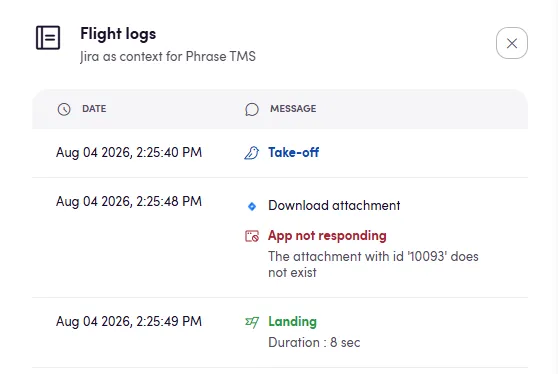
- App not responding: The connected App has a temporary or external problem that neither the user nor the App developer can resolve immediately. Examples include a service outage, an unexpected server error, or a rate limit that cannot be handled through waiting and retrying. It’s also possible that the App forward a custom error message in which case it’s possible that the user needs to reconfigure the Bird.
- Unexpected App issue: An unhandled issue in the App’s code. This indicates that the App developer needs to investigate and either handle the problem or classify it as one of the error types above. If you encounter this error in your Flight logs you can assume that the Blackbird support team has also already been notified and is working on resolving the issue.
These categories help you decide whether to correct the Bird’s configuration, retry later, or contact the App developer or Blackbird support. In the case of App not responding errors it could be a good idea to defensively protect your Flights in order to maintain smooth operations. Blackbird has two different error handling mechanics for this:
Retry policy
Section titled “Retry policy”How a workflow deals with errors can have a big impact on its overall performance. Retrying actions that failed due to temporary problems can often help complete a workflow that might otherwise be stuck.
To set up a retry policy in Blackbird:
- From an action, navigate to the ‘Error handling’ tab.
- Define the maximum number of retries in the ‘Number of retries’ field.
- Specify the retry interval in the ‘Frequency (Seconds)’ field.
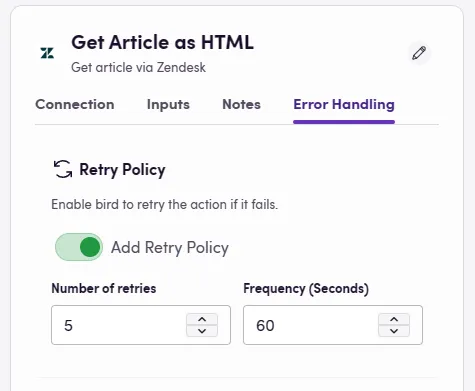
The bird will now attempt to re-execute the action the designated number of times at the specified interval if it encounters an error.
When to use a retry policy
Section titled “When to use a retry policy”One may think that it’s wise to apply a retry policy to every action in their bird “just in case”. This is unfortunatly not the case because of the following reasons:
- A retry policy may incur extra API usage cost.
- A well-built app should already take care of retries under the hood for common scenarios such as rate limits.
- Retrying an action with side-effects can cause logical issues in the systems you connect to. For example, if the action creates a new project in a system then multiple projects can suddenly be created because the underlying error occured after the project creation was handled. In technical terms one needs to take idempotency into account.
This still leaves us with the question when you should be using the retry policy feature. As a general rule of thumb it is recommended to add a retry policy when the system you are connecting to can be assumed to be unstable in certain scenarios and from testing your bird you conclude that adding a retry policy would make your work of operating this Bird less cumbersome.
So adding a retry policy to an action that sometimes fails due to a server being overloaded, while the Action itself does not spawn new entities in this system is good practise. Adding a retry policy to an Action that can fail because a user misconfigured a certain value is not recommended as retrying the action will never yield good results and it is in this case often better to be notified sooner rather than later.
Skipping an action on error
Section titled “Skipping an action on error”There may be cases where an error can occur, and you’d like the workflow to progress regardless of the error. In these situations, you can skip the failed action and continue with the rest of your workflow.
To enable this:
- Find the desired action in your workflow, then go to the ‘Error Handling’ tab.
- Toggle ‘Enable Skip Action’ on.
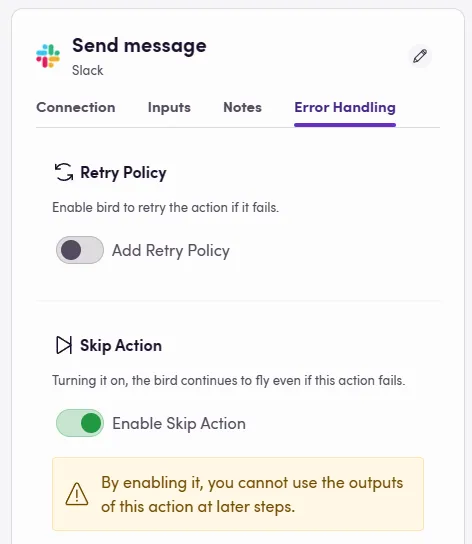
Now, if this particular action errors, it will be skipped, allowing the workflow to proceed.
💡 Note: When you are enabling the skip action ability, the output values of this action cannot be used anywhere else in the bird.
When to skip an action on error
Section titled “When to skip an action on error”The skip Action ability is designed to work perfectly for non-essential workflow steps. E.g. steps that are not vital for the correct executing of your workflow like logging, notifications, status updates, etc. It is up to the user to decide which actions are non-critical and are permissable to be skipped.
Skipping a failed loop iteration
Section titled “Skipping a failed loop iteration”Loops can be configured to continue when an iteration encounters an error. In the loop’s Error handling tab, enable Skip iteration. When enabled, a failed iteration is skipped and the Bird continues with the next iteration instead of stopping the entire Bird.
Use this for loops where each item can be processed independently and a failure for one item should not prevent the remaining items from being processed.
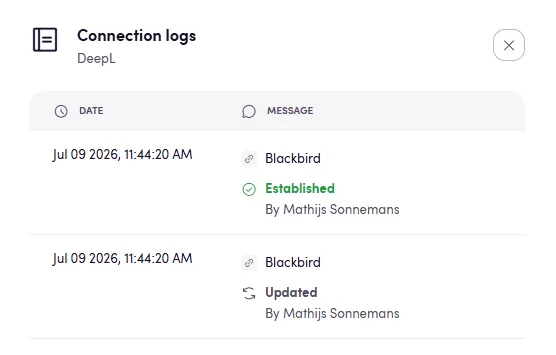
Logs provide the detail you need to diagnose an issue. Open the logs panel using the logs icon in the top-right corner of the Bird editor, Flight page, or an App’s connections tab. In the case of Flight logs, they usually provide more information (e.g. stack traces) for failed Actions.
- Bird logs record who edited, saved, published, activated, or deactivated a Bird and when. They also report publishing and webhook or polling issues, including a stack trace when one is available.
- Flight logs record take-off and landing times, additional information emitted by Actions and Events, and error stack traces when available in chronological order of a particular Flight.
- Action and Event logs are available from the individual Action or Event’s Logs tab, so you can focus on entries for that specific step.
- Connection logs record who created or updated a connection, as well as disconnections and their available stack traces.
💡 Note: If a webhook- or polling-triggered Bird fails five times in a row, Blackbird automatically deactivates it and creates a Notification. Review the Bird logs to identify and resolve the structural issue before reactivating the Bird.
Notifications
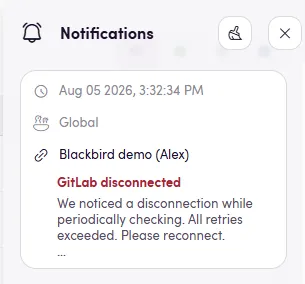
Section titled “Notifications”Notifications surface important operational issues as they happen. Use the notifications icon in the global top menu, next to the Nest selector, to view them.
Notifications are available to admins and cover all Nests. Each notification identifies the Nest it relates to and can take you directly to the relevant page, where its logs open automatically. Blackbird currently notifies you when:
- A connection is disconnected because Blackbird can no longer communicate with the third-party application.
- A Bird is automatically deactivated after repeated webhook or polling failures.
For custom alerting or escalation workflows, use the Blackbird Service API’s notification event to trigger a Bird when a notification is created.
Setting up automatic alerts
Section titled “Setting up automatic alerts”Even with retry policies and skip options, a Flight can still fail. Use the Blackbird Service API app to create Birds that react to a failed Flight or to a newly created notification. This gives you full control over the response: send a message in Slack, create a Jira ticket, send an email, log the issue to a database, or run a rollback process.
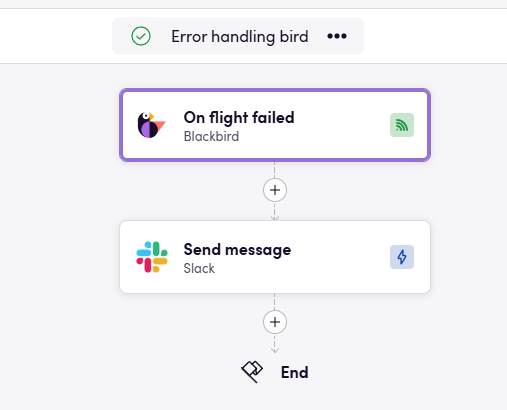
This simple Bird sends a Slack notification when any Flight fails. You can also create a ticket in Jira, send an email, log the failure to a database, or combine these responses.
The Blackbird Service API app also includes Get Bird logs and Get Flight Logs actions, so a response Bird can retrieve diagnostic information about the affected Bird or Flight. Its On Notification received event trigger can start a Bird whenever Blackbird creates a notification, enabling custom notification delivery and escalation workflows.
Read more about these actions and events on the Blackbird Service API app page.
End Notes
Section titled “End Notes”Dealing with errors is a key aspect of any workflow design. At Blackbird, we’re dedicated to providing you with the tools you need to manage your workflows efficiently, even when things go wrong. Keep an eye on this guide for future updates as we continue to improve our platform. As always, if you need help or have questions, please reach out to the support team.