

Sitecore (Graph QL)
Sitecore is one of the leading enterprise-level content management systems, enabling web content editors and marketers to have full control over all aspects of their websites — from social integration and blogs to personalization and ecommerce.
This application focuses on integrating Sitecore content, languages, and workflows into the Blackbird automation environment using Sitecore GraphQL API.
Unlike the previous generation, which required a custom plugin installation on your Sitecore instance, this app uses the publicly available Sitecore GraphQL endpoint, simplifying setup and maintenance.
For the legacy plugin-based version of this integration, see Blackbird.io Sitecore XM Cloud (Plugin).
Before setting up
Section titled “Before setting up”Before you can connect you need to make sure that:
For Sitecore XM Cloud
Section titled “For Sitecore XM Cloud”- You have a Sitecore XM Cloud instance.
- You have a Client ID and Client Secret available from your XM Cloud credentials.
- You know your Sitecore base URL (e.g.,
https://xmc-yourorg-yourinstance.sitecorecloud.io).
For Sitecore XP
Section titled “For Sitecore XP”- You are using Sitecore XP version 10.3 or higher.
- The GraphQL API feature is enabled for your Sitecore instance.
- Sitecore Identity Server is configured and accessible.
- You have a Client ID and Client Secret configured in your Sitecore Identity Server for OAuth2 authentication with
client_credentialsgrant type. - You know your Sitecore CM base URL (e.g.,
https://cm.yourdomain.com). - You know your Identity Server URL (e.g.,
https://identity.yourdomain.com).
Enabling GraphQL API
Section titled “Enabling GraphQL API”This application interacts directly with your Sitecore instance via the built-in GraphQL API.
For Sitecore XP
Section titled “For Sitecore XP”Note: Enabling and configuring the GraphQL API in Sitecore XP is a multi-step process that involves Identity Server configuration, patch files, and API authorization setup. Allow time to work through this carefully.
Two resources are available to guide you:
-
Official Sitecore documentation: Walkthrough: Enabling and authorizing requests to the Authoring and Management API
-
Community example project: sitecore-xp-authoring-management-api-authorization — an open-source project with a detailed step-by-step README and a working example implementation showing exactly how to enable and authorize the GraphQL Authoring and Management API in Sitecore XP. If you find the official documentation unclear, this is an excellent starting point.
To verify that the GraphQL API is configured properly, navigate to: https://your-cm-instance.com/sitecore/api/authoring/graphql/ide/
If everything is set up correctly, you should see the GraphQL IDE interface.
Connecting
Section titled “Connecting”Navigate to apps and search for Sitecore (GraphQL) and click Add Connection. This application has two connection types: Sitecore XM Cloud and Sitecore XP. You can select the connection you need from the dropdown menu. Please give your connection a name for future reference, e.g., My Sitecore Connection.
Sitecore XM Cloud
Section titled “Sitecore XM Cloud”- Select Sitecore XM Cloud connection type.
- Fill in the following parameters:
- Base URL — your XM Cloud instance URL (e.g.,
https://xmc-yourorg-yourinstance.sitecorecloud.io). - Client ID — from your XM Cloud credentials.
- Client Secret — from your XM Cloud credentials.
- Base URL — your XM Cloud instance URL (e.g.,
- Click Connect to establish the connection.
- Verify that connection was added successfully.
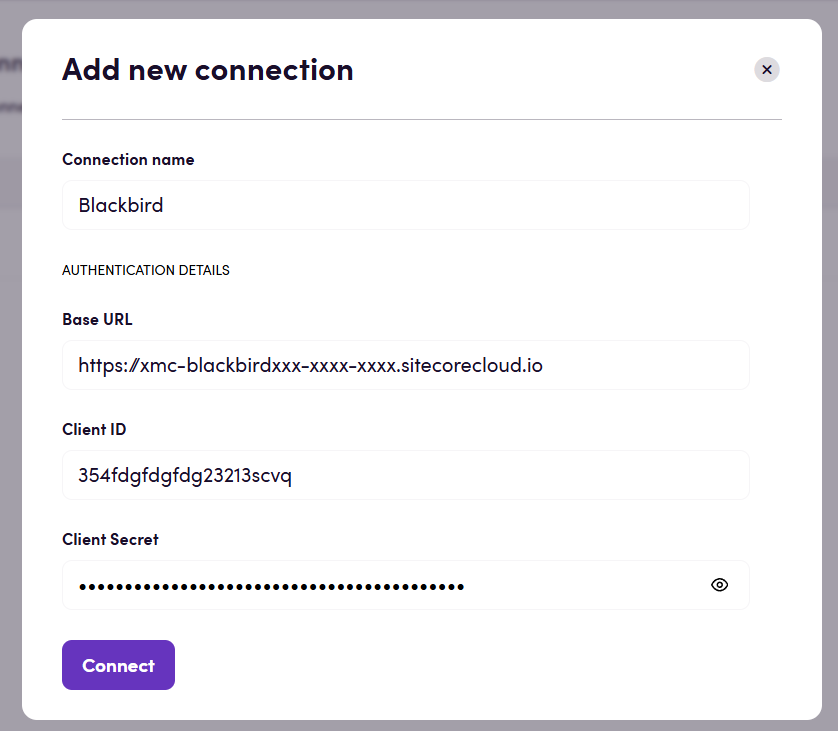
Sitecore XP
Section titled “Sitecore XP”- Select Sitecore XP connection type.
- Fill in the following parameters:
- Base URL — your Sitecore CM base URL (e.g.,
https://cm.yourdomain.com). - Identity Server URL — your Sitecore Identity Server URL (e.g.,
https://identity.yourdomain.com). - Client ID — OAuth2 Client ID configured in Identity Server.
- Client Secret — OAuth2 Client Secret configured in Identity Server.
- Base URL — your Sitecore CM base URL (e.g.,
- Click Connect to establish the connection.
- Verify that connection was added successfully.
Once connected, you can begin using the available actions and events within your Blackbird workflows.
Actions
Section titled “Actions”Content (items)
Section titled “Content (items)”-
Search content
Retrieve a list of Sitecore content items.
Inputs: Language (required), Root path, Field names, Field values, Use exact field value filtering, Created after/before, Updated after/before.Sitecore GraphQL field filtering does not perform reliable exact value matching for text fields. Instead, it uses search/index-based matching, which may treat related terms such as
translate,translation, andtranslatedas equivalent. As a result, filtering by a specific field value such asstatus = "in translation"may return items with different but related values.
To ensure precise results, enable Use exact field value filtering. When enabled, the action uses Sitecore only for scope narrowing (_path, language, dates), fetches all matching items, and then applies exact case-insensitive field-value filtering locally. Leaving this option empty orfalsekeeps the standard GraphQL-side behavior. -
Get content
Retrieve detailed information for a specific content item by its ID.
Inputs: Content ID (required), Language, Version. -
Download content
Download the content of a Sitecore item as an HTML file ready for translation.
Inputs:- Content ID (required), Language (required), Version — identify the source item and language version to download.
- Include child items — when enabled, child items are fetched and embedded in the same HTML file. Each child is preserved as a separate section so the upload action can write them back individually.
- Field names / Field values — used together to filter which child items are included (e.g. include only children where
status=translate). Applies only when Include child items is enabled. - Exclude fields — a list of field names to omit from the HTML output (e.g.
IsVerifiedStyle,Value,SortOrder). Use this to strip non-translatable fields and keep the file clean for translators.
-
Upload content
Upload translated content back into Sitecore.
Supports both HTML (produced by Download content) and XLIFF formats.
The action automatically resolves the correct version in the target language: if a version already exists it is updated in place; if no version exists yet a new one is created first.
Inputs:- Content (required) — the translated HTML or XLIFF file.
- Target language (required) — the language variant to write into (e.g.
nl-nl,de-de). - Content ID (optional) — override the root item ID from the file. Useful when the file was downloaded from one environment and is being uploaded to another.
-
Delete content
Delete a Sitecore content item by its ID.
Inputs: Content ID (required).
Workflows
Section titled “Workflows”-
Search workflows
Retrieve all configured workflows along with their states and available transitions. -
Update workflow state
Change the workflow state of a specific content item by executing a workflow command.
Useful for automation scenarios such as moving items from Ready for translation to In translation or Translation completed.
Inputs: Content ID (required), Language, Version, Workflow command ID (required).
Events
Section titled “Events”On content created or updated
Section titled “On content created or updated”A polling event that periodically checks for new or updated content items.
When new or updated items are detected, they are returned as part of the event payload.
Important:
- Events are polling-based, not real-time.
- Default polling interval: 5 minutes.
- You can configure the polling frequency in the UI.
Feedback
Section titled “Feedback”Do you want to use this app or do you have feedback on our implementation? Reach out to us using the established channels or create an issue.