Figma
Figma is a cloud-based design and collaboration platform that specializes in user interface (UI) and user experience (UX) design. It provides a powerful, browser-based vector graphics editor that enables teams to create, prototype, and iterate on digital products in real time. Figma’s platform is known for its intuitive interface, seamless collaboration features, and ability to keep designers, developers, and stakeholders aligned throughout the entire product development process.
Use this app to download images and variables from your Figma files, then upload translated variables.
All Figma plans have access to the Download image Action. However, in order to use Figma variables with Blackbird you need to be on the Enterprise plan. See: the Figma developer docs for variables
Before setting up
Section titled “Before setting up”Before you can connect, make sure that:
- You have a Figma account.
- You have a Personal Access Token for your Figma account. You can find it under Account settings > Security > Personal access tokens. Make sure your access token has the following scopes: projects:read, file_content:read, file_metadata:read, file_variables:read, file_variables:write
- You have an existing Figma project you want to connect to.
Connecting to Figma with OAuth will be available soon.
Connecting
Section titled “Connecting”- Navigate to Apps and find the Figma app. You can use Search to find it.
- Click Add Connection.
- Name your connection for future reference, for example, ‘My Figma connection’.
- Enter the Project ID for the project you want to connect to. You can find it in the URL when viewing the project: https://www.figma.com/design/:project_id/…
- Enter the Personal Access Token for your Figma account.
- Click Connect.
Actions
Section titled “Actions”Variables
Section titled “Variables”- Download variables Download variables from a Figma project.
- Upload variables Upload translated variables to a Figma project.
Advanced settings:
- Target mode: The mode to upload the variables to. If omitted, the language in the uploaded file is used.
Images
Section titled “Images”- Download image Download an image from a file.
Advanced settings:
- Format: The image format to download. If omitted, PNG is used.
Events
Section titled “Events”Variables
Section titled “Variables”- On variables updated Triggers when variables in a mode are updated.
Advanced settings:
- Modes: The modes to consider. If omitted, all modes are checked.
Localizing Figma variables
Section titled “Localizing Figma variables”Figma variables are reusable values that you can apply to design properties, including text fields. For localization, create at least one collection that contains text variables and bind those variables to the text in your designs.
Treat the collection as a table of localizable copy: each row is one uniquely named variable, and each mode is a language. For example, create an en-us mode for source copy and add an es-es mode for Spanish. Each variable then has a value for every language, and changing the selected mode lets you preview the localized text in the same design.
Figma users can add variables as their designs evolve. When a Bird is configured to download and translate the collection, new variables are included automatically and translated values can be uploaded to the appropriate language mode. The same structure can also support automated workflows that synchronize Figma variables with product translation keys in developer repositories.
TIP! You can use a plugin like Text to Strings (among others) in order to turn all your visible text into variables.
Synchronizing with product repositories
Section titled “Synchronizing with product repositories”The files that Blackbird generates are keyed JSON files (although it’s possible to conver these to whatever file structure your developers use). This means that the files can also be synchronized with the many different code repository Apps in Blackbird like Github or Gitlab among others. This opens up the ability for your translation process to conclude in the Figma environment with developers immediatly receiving any updated translations into their environment. Alternatively, monolingual changes can also be synchronized so that users working in Figma can automatically update product strings.
Blackbird can also synchronize strings in the other direction, taking your product strings as the source of truth and updating them in Figma when changes are made by developers. For more information on these advanced techniques read the Blacklake documentation.
Example Bird
Section titled “Example Bird”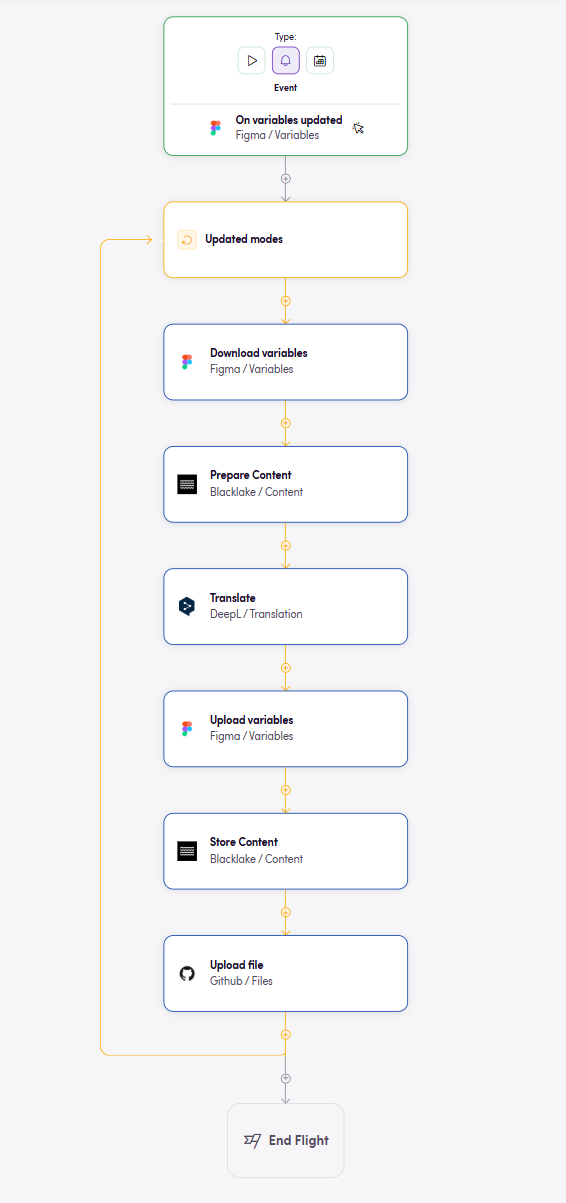
This example shows the shape of a Bird triggering on changes to the source language (languages are denoted by modes, columns in the Figma variables table). It then downloads the variables, uses Blacklake to prepare the content for translation (diffing, leveraging, style guides and terminology), translates the files and uploads them back to Figma. The result is a seamless workflow where any source changes automatically update all the other languages in Figma.
As a bonus, the Upload file to Github Action also synchronizes the content to Github so that developers can immediatly use the content and translations.
Demo video
Section titled “Demo video”In this demo, see how variables work in Figma, how Blackbird.io automates localization workflows and how you could even synchronize Figma with a code repository.
Example Workflow
Section titled “Example Workflow”What follows is an example that shows how a Bird like the one above could be used in production and how it neatly automates within your existing workflows.
- Open a Figma file that is covered by a Bird like the one above.
- If not done yet, make sure that all the visible text are connected variables. You can use a plugin like Text to Strings
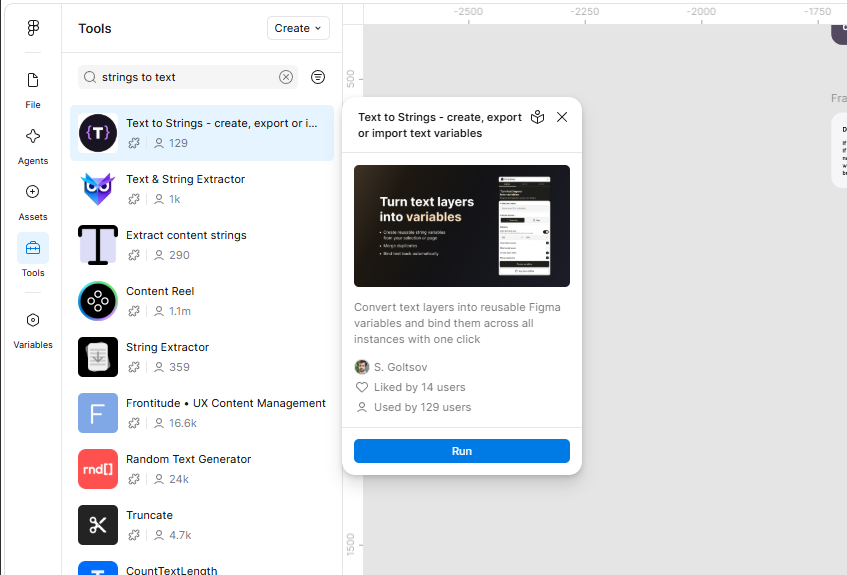
- You can view the variables by going to the variables tab. The plugin should have created a lot of variables. Tip: for convenience it’s useful to rename the columns to language codes.
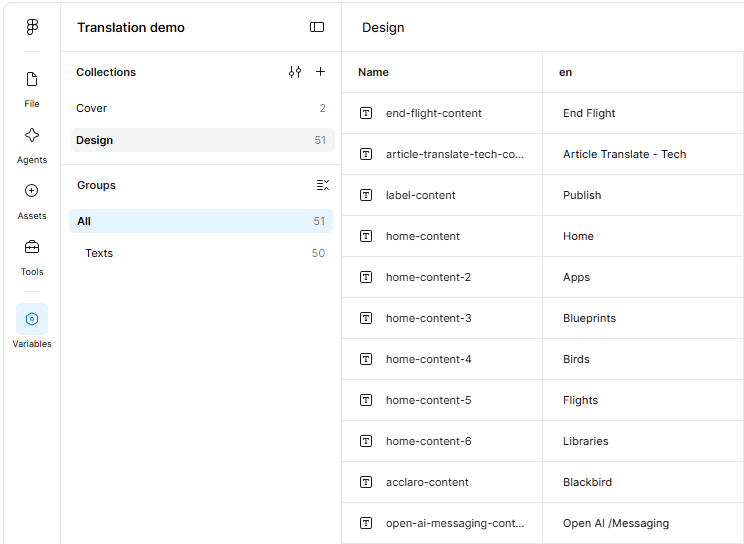
- After your Flight finishes using your preferred translation workflow. The new languages are automatically updated in Figma.
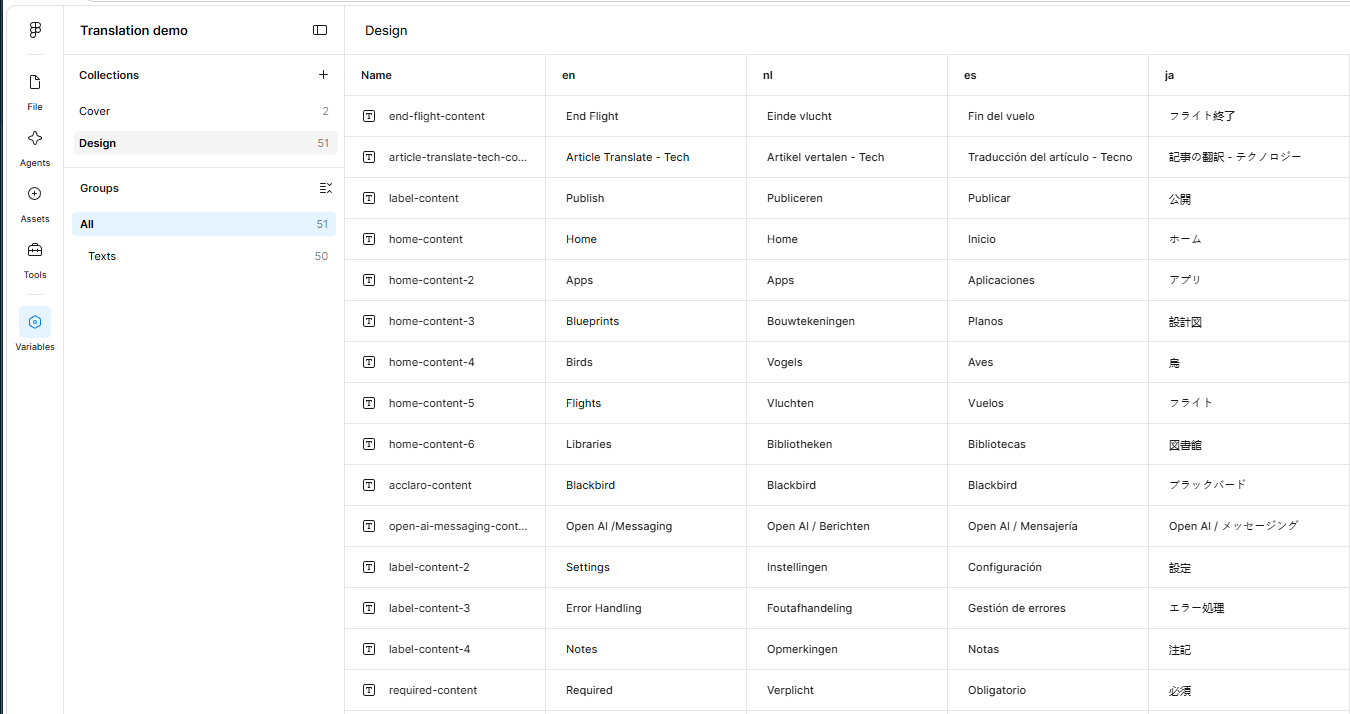
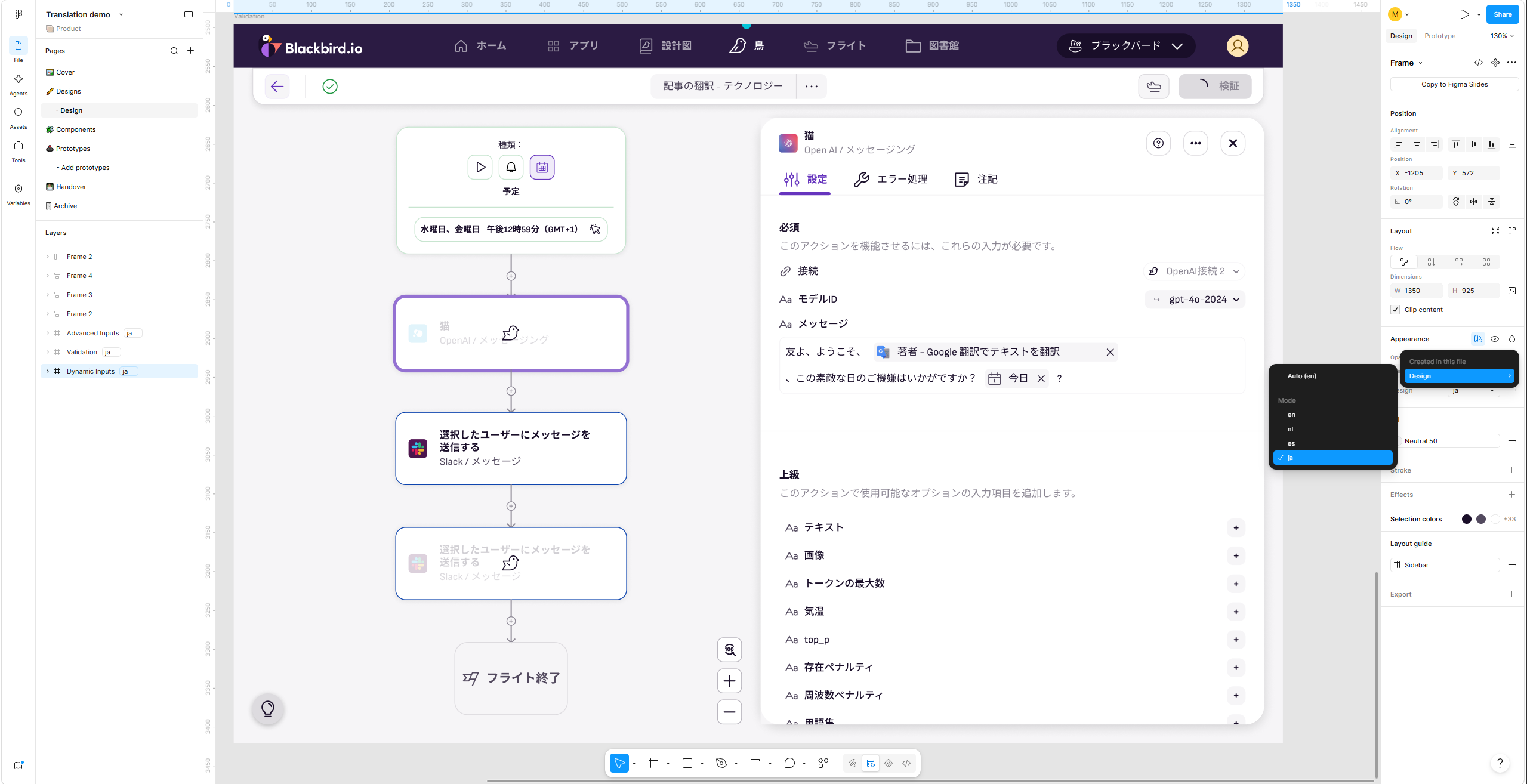
- Select the frames that you want to change the languages of. In the right bar under Appearance you can select the language you want to view your frames in.
- The frames automatically change to the selected language. If you want to duplicate the frames simply duplicate them and set a different language per frame.
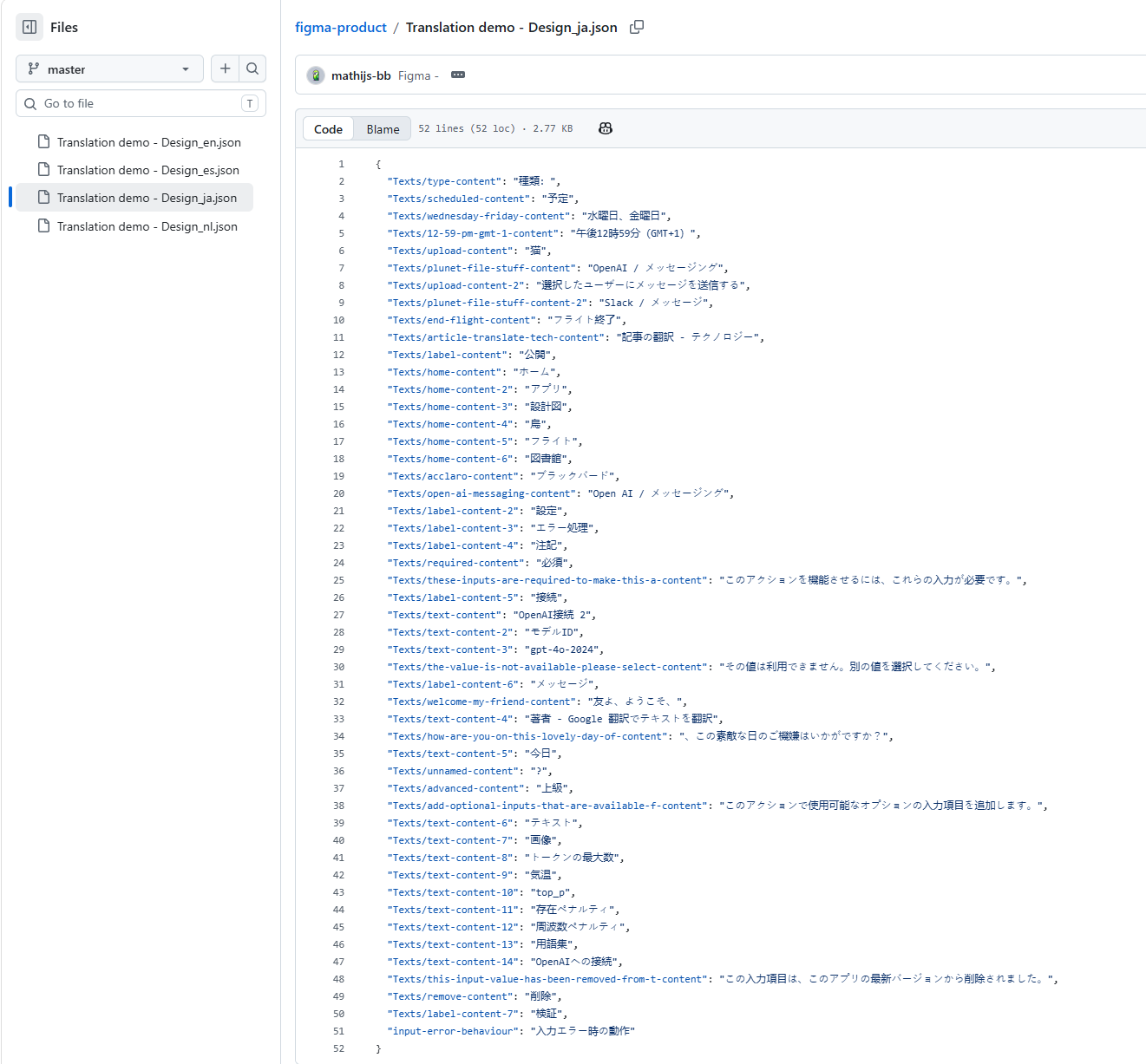
- Bonus: the Bird has also updated the strings in Github!
As with all Birds in Blackbird, many variations can be made including but not limited to changing the preferred translation methodology, adding project management tools into the Bird for enhanced control, and setting up Blacklake in context editing functionality!
We are still developing the Figma app and want to hear your opinion. How do you ultimately want to translate content in Figma? What do you do today, and how would you want to see that improved? If you’re interested in using the Blackbird Figma app for translation, please reach out.
Feedback
Section titled “Feedback”Do you want to use this app or do you have feedback on our implementation? Reach out to us using the established channels or create an issue.