

Blacklake Editing
💡 You can try Blacklake today. Contact us if you want to participate.
Watch: Quick overview of drafting and editing content in Blacklake (2 mins)
Editing content and working with drafts
Section titled “Editing content and working with drafts”Blacklake keeps content connected to the systems where it actually lives. When content is updated in a CMS, repository, or another connected system, Blacklake stores the change against the relevant content and text units, preserving context and history.
Sometimes an update is ready to save but not ready to publish. Draft mode makes it possible to keep that work in Blacklake without replacing the current live content.
💡 It’s also possible to edit your target content in the systems they are hosted in. We call this ‘In-context editing’. Check out the blueprints for this editing scenario. The rest of this article will focus on editing content in the Blacklake interface.
Live changes and drafts
Section titled “Live changes and drafts”Every unit can have a live version and, optionally, a draft version.
- A live change is the current normal version of a unit. It is used by default when viewing content, diffing incoming content, and reusing translations.
- A draft change is a pending alternative. It preserves the live version until the draft is promoted or replaced.
- A content item can contain both: some units can remain live while other units have draft updates.
This allows teams to prepare edits, translations, or review changes without exposing unfinished work to production workflows.
Creating a draft
Section titled “Creating a draft”Drafts can be created in two ways:
- Store a complete bilingual file as a draft through a Bird. This is useful when an external system sends an update that is still under review.
- Create a draft for selected units in the UI. This is useful for in-context or targeted editing.
Drafts retain the same useful information as live changes, including quality information, translation and review provenance, and usage data. When several units are saved together, shared commit-level metadata is consistently applied to each change.
Editing content in Blacklake
Section titled “Editing content in Blacklake”To edit content in the Blacklake interface, open the relevant content item in a lake. Its text is shown as individual units, so you can update only the passages that need attention.
- Find the unit you want to change.
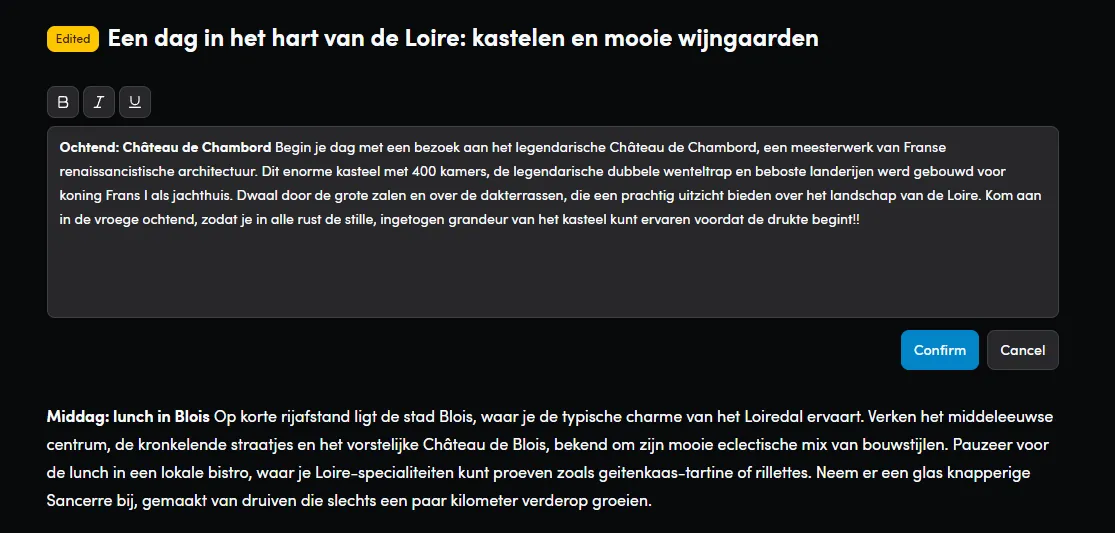
- Right-click the unit and select Edit. Alternatively, click the unit to open its Change History, then select the pencil icon.
- Update the text in the editor.
- Select Confirm to stage the change for that unit, or Cancel to abandon the change currently being made.
Confirmed changes are not saved immediately. They are marked Edited in the content view, allowing you to prepare and review changes to multiple units before creating a draft.
For HTML content, the editor also provides bold, italic, and underline controls. Blacklake preserves the unit’s surrounding rendered structure, so the edited text remains appropriate for the content type.
Reviewing, saving, and discarding edits
Section titled “Reviewing, saving, and discarding edits”Use the layout controls at the top of the page to choose how you review content:
- Show details displays each unit with available metadata, such as provenance and quality.
- Show content only provides a focused reading view.
- Show side-by-side displays source and target text next to one another similar to traditional CAT interfaces.
You can also open a unit’s Change History to inspect previous versions, including drafts. The history shows differences from the preceding version and identifies draft changes.
When you are ready to store your staged updates:
- Select Save edits in the top-right corner.
- Confirm the number of edited units in the dialog.
- Select Save edits again.
Blacklake saves the selected unit updates together as draft changes. The units are then labelled Draft, and the edits remain separate from the live version until they are synchronized and stored as finalized changes.
To remove work before saving:
- Right-click an edited unit and choose Discard to remove that unit’s staged edit.
- Select Discard edits to remove all staged edits for the content item.
- If you leave the page with staged or in-progress edits, Blacklake asks whether you want to keep editing or discard them.
What stays live
Section titled “What stays live”Creating a draft does not overwrite the live content.
For example, if the current live unit says:
Start your free trial
and a draft changes it to:
Start your 14-day free trial
the normal content view continues to show Start your free trial. The new wording is available when viewing drafts. This also means that by default, Birds that use Blacklake will not pick-up the draft changes unless you specify it (see below).
This applies to both unit listings and search:
- The normal view returns each unit’s live version.
- A draft-aware view returns the latest draft where one exists.
- Drafts are not used for content diffing by default.
- A strategy can explicitly allow drafts to participate in leverage, so pending translations can be reused only when the workflow permits it.
This makes draft usage intentional: production workflows remain based on approved content, while review or pre-publication workflows can opt into the newest pending work.
This separation also preserves the formatting appropriate to the content type. For example, an HTML unit’s draft keeps the existing rendered HTML structure while its text changes. Editing content in Blacklake will give you the right editor for the right tags for the right systems.
Updating and promoting drafts
Section titled “Updating and promoting drafts”A unit can receive multiple consecutive draft updates. Blacklake keeps the latest draft as the active pending version for that unit.
When a later normal commit saves the same finalized content, that change becomes live and resolves the pending draft. The unit then returns to having one current live version, with its draft pointer cleared.
Finding content with recent draft activity
Section titled “Finding content with recent draft activity”Content search supports a Draft changed since filter for polling and synchronization workflows.
The filter compares against the most recent draft commit for the content item. If a content item receives drafts at two different times, the later draft is the timestamp used for the filter. Once a normal commit resolves the draft state, the item no longer appears as having pending draft work.
This is useful for workflows such as:
- Notify a reviewer when new draft work is available.
- Export only content whose pending translation changed since the last poll.
- Run a review or QA process only for recently updated drafts.
A typical workflow
Section titled “A typical workflow”- Content is prepared from its source system.
- Translators, reviewers, or automation create draft updates for the units still in progress.
- Review workflows retrieve content with drafts enabled.
- Finalized units are stored as normal changes and become immediately available to live workflows.
- The remaining draft units continue through review until they are promoted by a normal commit.
Draft mode gives teams a safe working area without disconnecting editing from the real systems that own the content.
Synchronizing draft changes with the source system.
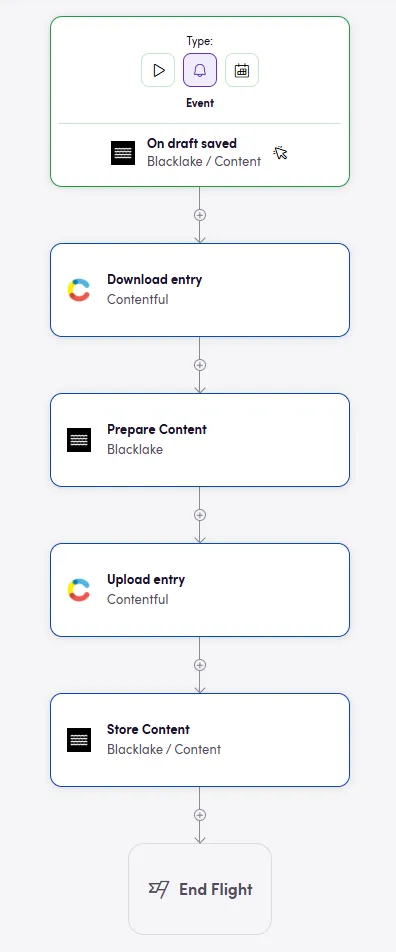
Section titled “Synchronizing draft changes with the source system.”The following Bird is triggered when any edits are made in Blacklake. By design, it downloads the content it’s going to update again and then prepares the content. The prepare content step explicitly has “Include drafts” activated so that drafts are diffed into the new content. The content is then uploaded. After that the uploaded version is send to Blacklake again. This way Blacklake knows that the draft changes have now become real changes.
A blueprint of this Bird is also available.